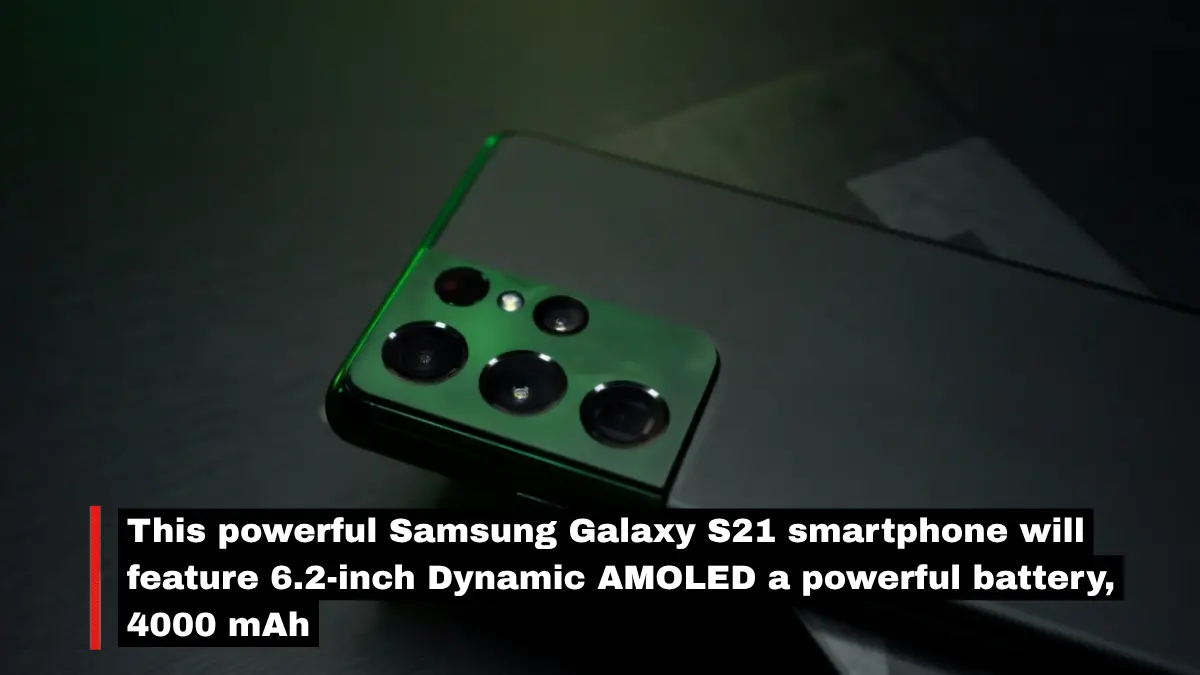
This powerful Samsung Galaxy S21 smartphone will feature 6.2-inch Dynamic AMOLED a powerful battery, 4000 mAh
Samsung S21 Hidden Features: This One Trick Will Change Your Photos Forever!
If you haven’t watched my video on the Galaxy S21 Ultra yet, I highly recommend that you check it out, as it features some excellent capabilities as well. But in this video, I’m going to show you even more awesome tips and tricks for the S21 and S21 Plus—starting with ‘Object Erase.’ So, how do you do this? Open the Gallery app and select a photo from which you want to remove something in the background. Then, tap on the ‘Edit’ icon and swipe to the right until you see this specific icon.
Remove Anything in Seconds?! Samsung S21’s Hidden Magic Trick Revealed!
As soon as you tap on it, you will be able to select the object you wish to remove from your background. So, for my example, I wanted to remove these headphones. Simply tap on the object; it will be highlighted in red. Then, tap the ‘Erase’ button, and just like that, the object is removed from your background. So, here is the example I just created, and as you can see, it is incredibly simple. It doesn’t always work perfectly 100% of the time, but in most cases, it works quite well.
Samsung S21 Hidden Features: 8K Video + Object Erase—This Phone Is Full of Secrets!
So, the next time there’s a minor object in your background that you want to get rid of, simply use ‘Object Erase.’ Now, one thing I really love about the S21 Plus is its incredible cameras. And the best part is that if you open the Camera app and swipe to the right to enter ‘Video Mode,’ right there you will see this ‘Format’ icon. And if you tap on it and swipe to the left, you will see the option for ‘8K at 24 frames per second’—which, obviously, is an extremely high resolution. But that’s not all; when you are ready to start recording your video and press the ‘Record’ button located in the bottom-right corner, you will see a small ‘Picture’ icon appear.
Samsung S21 8K Secret: Turn Your Videos Into Stunning Photos Instantly!
And if you click on it, it captures a ‘Snapshot’ (photo) right while you are recording 8K video. So, here is an example of Mike that I captured; I obtained these very high-quality ‘Snapshots’ precisely while recording the video. However, if you happen to forget to take ‘Snapshots’ while recording, there is still a simple workaround. You simply need to locate the 8K video you recorded and scrub through it until you find the specific frame you wish to capture as a photo.
Must Read : The new flagship series debuts a head-turning
Shoot Video, Get Perfect Photos?! Samsung S21’s 8K Trick Is Insane!
I felt that this particular moment looked quite impressive and would make for an excellent ‘Snapshot.’ Then, you just have to click on the small icon located in the top-left corner, and just like that, I have a fantastic photo of Mike. And because this video was recorded in 8K—in 8K resolution—when I zoom in on the image—as you can see—the quality remains remarkably high.
Must Read : Samsung Galaxy S21 5G Android smartphone

Anurag is a student and the founder of THE ARRAX NEWS. He writes about USA Breaking News, Finance, Health, and Technology. Anurag is passionate about researching global trends and delivering simple, informative, and engaging content for readers who want to stay updated with important news and insights.
Through THE ARRAX NEWS, he aims to provide reliable information and make complex topics easy to understand for a wide audience.
Website: https://thearraxnews.com
Email: officiallanuragverma@email.com